Skip to content
  • Home
  • Features
    • Matrix Framework
    • Matrix One
    • Plugin Toolkit
    • Matrix Library
  • Templates
  • Support
  • Pricing
  • Home
  • Features
    • Matrix Framework
    • Matrix One
    • Plugin Toolkit
    • Matrix Library
  • Templates
  • Support
  • Pricing
  1. Support
Framework Core Built-in tool

Module Navigator

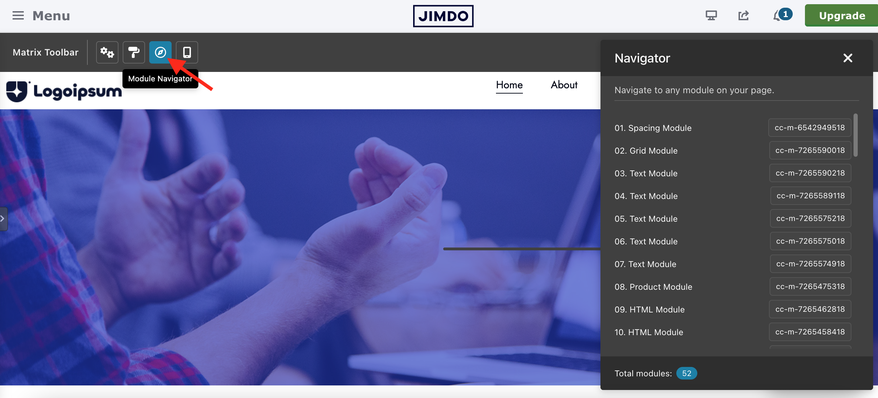
A fast admin popup that lists every module on the current page, lets you jump straight to it, and copies original module IDs for anchors like #cc-m-xxxxx.

6 min read
Admin tool

On this page

  • Overview
  • What it does
  • Quick setup
  • Using the popup
  • Module types
  • Using IDs in links
  • Troubleshooting
  • Next steps

Overview

Module Navigator gives you a page-wide inventory of Jimdo modules while you edit. Instead of hunting through a long page visually, you open one popup, see every module with its type and ID, click a row to scroll there, or copy the ID for anchor links.

  • Shows all modules on the current page with numbered type labels
  • Click a row to smooth-scroll to that module
  • Click the ID badge to copy the original Jimdo module ID
  • Use copied IDs in links like #cc-m-15453564323
  • Live footer count and draggable popup window
Admin-only tool: Module Navigator appears in the Jimdo editor when moduleNavigator: true is enabled and the page contains modules.

What it does

The popup scans the content area, finds every .j-module, identifies its type, and builds a jump list.

Action What happens
Open popup Matrix scans the current page and lists all detected modules
Click module row Smooth-scrolls to that module with sticky-header offset
Click ID badge Copies the original ID like cc-m-15453564323 and shows “Copied!”
Add / remove modules Count updates live via MutationObserver
Each row shows the module type and its original Jimdo ID badge.
browser-frame

1 Quick setup

Step 1 — Enable the feature

Set moduleNavigator: true in your Head configuration.

      Edit Head — MatrixConfig
features: {
  moduleNavigator: true  // Module navigator button and popup
}

Step 2 — Open the popup in admin

The button appears in the Matrix toolbar while you are in the Jimdo editor on a page with modules.

Step 3 — Navigate or copy IDs

Click any module row to jump there, or click the ID badge to copy it for use in links.

Tip: If the button is missing, first confirm you are in Jimdo edit mode and the page actually contains modules inside #content_area[data-container="content"].

2 Using the popup

The Module Navigator popup is intentionally simple:

  • Header — draggable, so you can move the popup anywhere
  • Module row — click to scroll to that section on the page
  • ID badge — click to copy the module ID
  • Footer — shows the total number of detected modules

Copy IDs for anchors

Use copied IDs in links such as #cc-m-15453564323 or /page#cc-m-15453564323 to jump to that module later.

3 Module types it recognizes

Matrix identifies common Jimdo modules automatically and labels them in the list.

  • Grid / Columns, HTML, Text, Header, Image, Gallery
  • Spacing, Divider, Download, Text with Image
  • Blog List, Form, Video, Facebook, Twitter, Social
  • Fallback for custom .j-* modules too
Original IDs stay intact: The navigator does not rename modules. It shows the real Jimdo IDs exactly as they exist in the DOM.

4 Using IDs in links

Copied IDs are useful for internal jump links and section-style navigation.

HTML
<a href="#cc-m-15453564323">About</a>

<a href="/services/#cc-m-15453564323">Jump to services section</a>

On public pages, Matrix handles hash scrolling and sticky-header offset when the main framework script is loaded.

Troubleshooting

Issue Fix
“No modules found on this page” Open a page that actually contains modules and make sure you are in the Jimdo editor.
“Content area not found on this page” This usually means you are not in the Jimdo editor or the content container has not loaded yet.
Button not appearing Confirm moduleNavigator: true and that you are in admin mode.
Module count not updating Close and reopen the popup to reset the observer if the page changed heavily.
Need debug logs Set debugMode: true in MatrixConfig and check the browser console.

Next steps

​

One-Page Navigation

Use copied #cc-m-xxxxx IDs alongside scroll-based section navigation when building long pages.

Open One-Page guide →
​

Custom Module

After jumping to the right module, style that exact heading, image, button, spacing, or form visually.

Open Custom Module →
​

Installation

Need the full MatrixConfig block and file upload steps from scratch? Start with installation.

Open Installation →

If you have encountered any bugs, errors, or unexpected behavior in the module Navigator, please leave a comment below.

Comments: 0

Get started
Gobal colors
  bg-primary
  bg-primary-light
  bg-primary-dark
  bg-secondary
  bg-secondary-dark
Template colors
  body
  top-header
  top-header-inner
  header
  header-inner
  navigation-inner
  navigation color
  dropdown background color
  content
Footer Styles
  background
  text color
  link color
  horizontal line
Buttons
  style 1
  style 2
  style 3
  text color
Mobile navigation
  background color
  navigation color
Other elements
  social icons
  top header border
  header border
  nav inner border
  footer border
 
Template configurations
 
has-sticky-logo has-large-header primary-font has-center-nav has-header-blur no-shopping-cart
 
Top header inner


Header inner


Navigation inner


Navigation styles
 
size-15 weight-400 color-nav
 
Sub-menu (breadcrumbs) styles
 
size-15
 
Mobile Navigation styles
 
size-30
 
Content styles
 
form-white
 
Footer styles
 
o-form has-thin-border has-border-style-solid has-border-top has-footer-border-color
 
Footer background image


Typography

Heading H1
weight-400
 
Heading H2
weight-400
 
Heading H3
weight-400
 
Body text (p, table, td)
 
 
Buttons
weight-400
 
 
Advanced settings
 
Custom CSS

#cc-inner .my-class {

color:#f0f0f0;

}

/* MATRIX-CUSTOM-MODULES-START */

#cc-m-7792741551 h1, #cc-m-7792741551 h2, #cc-m-7792741551 h3 {font-size:20px !important;}

#cc-m-7792741851 h1, #cc-m-7792741851 h2, #cc-m-7792741851 h3 {font-size:20px !important;}

#cc-m-7792930551 h1, #cc-m-7792930551 h2, #cc-m-7792930551 h3 {font-size:20px !important;}

#cc-m-12388126494 h1, #cc-m-12388126494 h2, #cc-m-12388126494 h3 {font-weight:600 !important;}

#cc-m-12388126494 h1, #cc-m-12388126494 h2, #cc-m-12388126494 h3 {font-size:40px !important;}

/* MATRIX-CUSTOM-MODULES-END */

/* MATRIX-GLOBAL-SETTINGS-START */

:root {

--content-width: 1170px;

--special-pages-content-width: 900px;

}

/* HAMBURGER-BAR-START */

:root { --hamburger-btn-background: transparent; --hamburger-btn-bg: transparent; --hamburger-btn-bg-active: transparent; }

/* HAMBURGER-BAR-END */

#cc-inner #hs-container .j-formnew input[type='submit'],

#cc-inner #hs-container input.submitUser,

#cc-inner .hs-button,

#cc-inner .j-calltoaction-link,

#cc-inner input.cc-checkout-btn,

#cc-inner a.cc-shop-addtocard {

padding: 14px 35px !important;

border-radius: 8px;

}

/* MOBILE-FULLWIDTH-BUTTONS-START */

@media only screen and (width <= 746px) {

#cc-inner #hs-container .j-formnew input[type='submit'],

#cc-inner #hs-container input.submitUser,

#cc-inner .hs-button,

#cc-inner .j-calltoaction-link {

width: 100% !important;

margin: 5px auto 0 auto;

box-sizing: border-box;

text-align: center !important;

}

}

/* MOBILE-FULLWIDTH-BUTTONS-END */

/* MATRIX-GLOBAL-SETTINGS-END */


Note:
All changes made here will be applied to your entire website.
Matrix Framework
draggable-logo

Matrix Framework

Build faster, smarter, and more flexible Jimdo websites.

has-right-col-border

Products

Matrix Framework

Matrix One

Matrix Plugin Toolkit

Resources

Support

Matrix Academy

FAQs

Changelog

Community

Showcase

Marketplace

Blog

Archive


About | Privacy Policy | Cookie Policy | Sitemap | Withdraw contract
Created with Jimdo
Log in Log out | Edit
  • Scroll to top
Close