Overview
Explore a comprehensive overview of Matrix One in this guide, which will help you understand how they work and how to customize your website.
Introduction
Matrix One is based on a custom layout available in the Jimdo Creator. The content management system (CMS) provides you with the ability to create your own template. Once installed, you can locate it under Design > Custom Template.

Template assets
There are 6 main assets of Matrix One:
1. HTML ( Design> Custom Template> HTML )
2. CSS ( Design> Custom Template> CSS )
3. CSS components ( Design> Custom template> Files)
- 04.custom-widgets.css
- 05.helper-classes.css
- 06.media-queries.css
- 07.admin-menu.css
- 08.libraries.css
- 09.updates.css
- 10.style-editor.css
4. Font Awesome icons ( Design> Custom template> Files)
5. JS files ( Design> Custom Template> Files )
6. Config Options in <head>
After installing the Matrix One on your Jimdo website, you will find an additional menu in the admin mode, containing all resources and Matrix Toolbar on the top of the page (visible on mouse hover the top edge of the page)


Style Editor
After installing the Matrix One on your website, you'll need to add the advanced style editor to customize your website. Navigate to the Matrix Framework admin menu, Documentation> Style Editor and follow the instructions to add the style editor in just two simple steps.
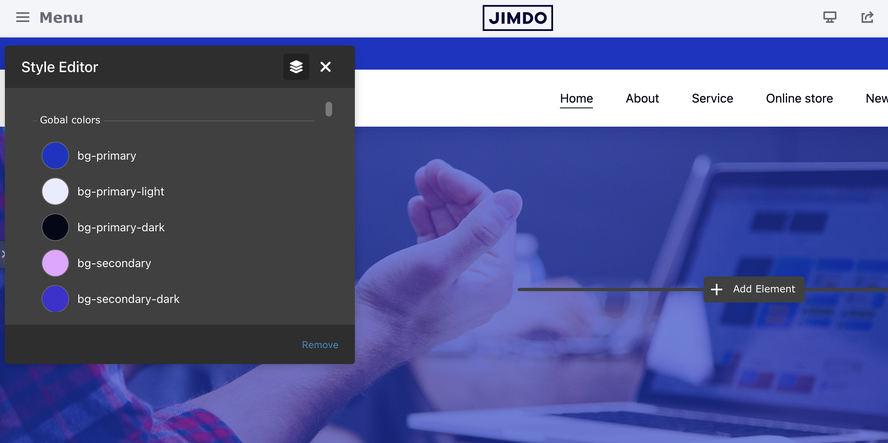
The advanced style editor includes the following features:
- Color settings: Customize the color setup of the main elements of your website, including brand colors and template sections (header, content, footer, buttons, etc.).
- Template configurations: Utilize template configurations to add custom classes for each section, defining the design of your website. This includes adjustments to navigation alignment, styles, default buttons, and contact form styles.
- Custom CSS: Add further customizations to your template or widgets using the Custom CSS option.
How to add custom widgets
The custom widgets of Matrix One are available in section 'Components' ( Shortcodes in previous versions). You can select any widget using the copy button and paste the code inside 'Widget/HTML'
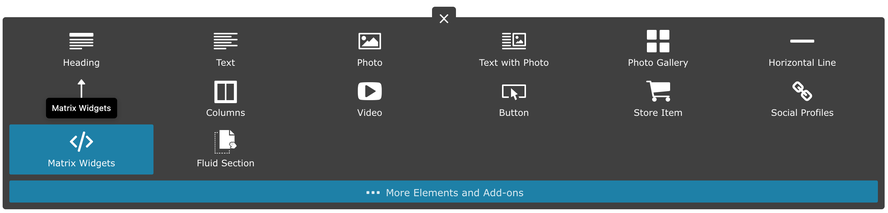
There are several sections in the Matrix Framework admin menu where you can find custom widgets to enhance your website:
- Shortcodes: The primary custom widgets designed for the Widget/HTML module. These widgets can also be added to Widget/HTML modules placed within columns.
- Block Elements: Full-width custom sections used with the Widget/HTML module. Block elements cannot be used within columns.
- Add-ons: Additional custom widgets and plugins.
Uploading the files
To change the custom widgets, including a photo, to your own, please follow these steps:
- Go to Custom Layout and select the Files tab
- Upload your own image by using the upload button.
- Once the file has been successfully uploaded, you will see the name of the file displayed in the list of files.
- Right-click on the file and select "Copy link address."
- Paste the link in the appropriate location within the Widget/HTML.
<div class="is-matrix cc-clearover">
    <div class="hs-thumbnail">
        <img src="https://u.jimcdn.com/cms/o/s572cf8a914c2631f/userlayout/img/matrix-teaser.jpg?t=1405356750" alt="" /
    </div>
</div>
Template selection
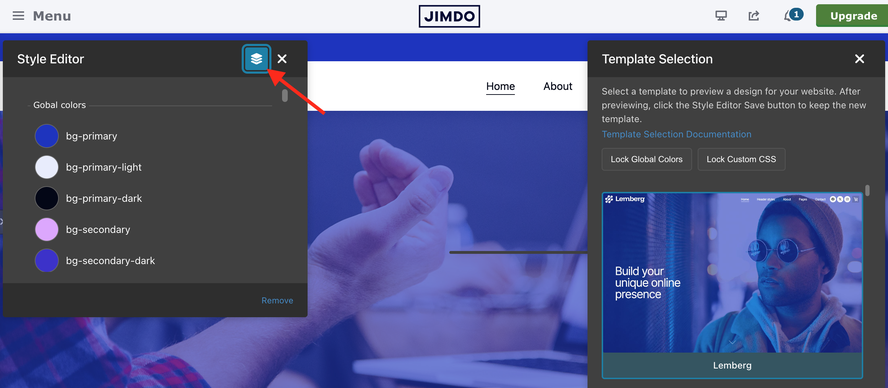
Open the Style Editor and click the “Template Selection” button. This will open a popup on the right side where you can choose one of 30 custom layouts. After selecting a layout, click the Save button in the Style Editor to apply and keep the new template.
Getting Support
The new documentation pages cover everything from basic info to advanced customization of Matrix Framework. Each page has a comments section, so you can ask questions about that topic.
You can also find the quick documentation sections in the Matrix Framework admin menu and along with a "Support" section you can leave a comment or use the contact form to reach the Support team.
Bernhard Häfliger (Saturday, 21 March 2020 17:37)
is it possible upload more than one parallax picture?
and how I've change the Elephant's with my picture?
Thanks
Serhiy (Monday, 13 January 2020 13:50)
@Andreas Pro or Business version
Andreas (Monday, 13 January 2020 13:40)
Are this changes possible with JimdoFree or must I before buy the JimdoPro?
Serhiy (Monday, 13 January 2020 12:12)
@Andreas please use 'no-hero' as body class ( see the details in documentation)
Andreas (Monday, 13 January 2020 09:51)
Hello Serhiy! I use the oland template and would like to remove the background image above the inserted slider on the start page. Thanks!
Richard (Saturday, 02 November 2019 11:32)
Great! Thanks!
Serhiy (Saturday, 02 November 2019 10:47)
@Richard
1) section "quick setup"
2) section "shortcodes"> awesome buttons
Richard (Saturday, 02 November 2019 10:41)
Hi Serhiy,
1- How do I change the background colour of the footer?
I tried to change .hs-footer, .footer-btm and .footer-top in CSS, but without any respons.
2- Is it possible to change the colours of the buttons in two variations? I would like to try transparant filling + text and outline in black or white (depending on the background). Is that possible?
Serhiy (Thursday, 31 October 2019 13:50)
https://www.rapidtables.com/web/html/link/html-anchor-link.html
Richard (Thursday, 31 October 2019 13:26)
Hi Sherhiy, it is in templates like https://lemberg-template3.jimdo.com/#scroll and probably a lot of other templates with a one page option. I see now that these are specific variations of certain templates. Too bad, since my customer likes this very much (it was also used in his former website).
Is there a work-around possible to realise this in the Alsten template?
Serhiy (Thursday, 31 October 2019 13:04)
@Richard I think it's been misunderstanding.
I have no tutorial about anchor links to a specific section of the page. Can you show me please a matrix themes you saw it?
There are templates with one page layout and anchor links in navigation. Those templates have a specific layout structure and features which are not available in other templates ( multilingual, multi purpose and templates with megamenu )
Richard (Thursday, 31 October 2019 12:50)
Hi Serhiy, I am using the Alsten template, but when I am looking on the Matrix website, I see 11 templates, but none of them is called "One Page". Can I also use one page technology in Alsten? How do I proceed?
Serhiy (Thursday, 31 October 2019 12:44)
@Richard this section and feature is only available in one page layout ( matrix themes menu> one page)
Richard (Thursday, 31 October 2019 12:40)
Hi Serhiy, I like to know more about these one page layout. Where to find that?
Serhiy (Thursday, 31 October 2019 12:32)
@Richard In custom widgets ( module Widget/HTML ) you need to add manually the url of the linked page, while using text, jimdo CTA etc, you can add a link with default Jimdo tools ( see the screenshot https://u.jimcdn.com/cms/o/s1aeecbbb2a5865b1/userlayout/img/adding-links.png?t=1572521319 )
I don't have tutorial for linking a specific section of the page. This options is available in one page layout.
Richard (Thursday, 31 October 2019 12:18)
I am looking for instructions how to navigate to a certain shortcut on a page. For instance from a CTA or Read More button or teaser. I miss the original Jimdo method to a link to another page, but I also need an a:link to go to a specific place on the same page. Can you help me out?
Richard (Monday, 28 October 2019 10:32)
I missed that one indeed (there is so much to read and to find out), but it works! Thanks.
Serhiy (Monday, 28 October 2019 10:26)
Richard, you haven’t read the instructions ( shortcodes> shortcodes ) about how to upload your own image and change it in custom widgets
Richard (Monday, 28 October 2019 10:22)
Hi Serhiy,
But how can I change the picture? The image source is now: "https://u.jimcdn.com/cms/o/s572cf8a914c2631f/userlayout/img/matrix-teaser.jpg"
But where is file this located and how do I put my own pictures in place?
Serhiy (Monday, 28 October 2019 10:00)
@Richard there's no further instruction for the widget "overlay teaser"
Richard (Monday, 28 October 2019 09:52)
Where can I find more instructions about the Matrix Widget overlay teaser?
I like to customise them.
Serhiy (Monday, 25 February 2019 12:58)
@Sandra in admin mode you can see the red box in your content section " Edit here your header title". Just click it and edit for your preference
Sandra Kolodjezak (Monday, 25 February 2019 12:57)
Hallo, wie kann kann ich den Text "Your Hero Titel" auf meiner Startseite ändern?
Agnieszka (Friday, 28 September 2018 13:00)
@Serhiy, thank you, It is gone.... easier than I thought :-)
Serhiy (Friday, 28 September 2018 12:18)
@agnieszka the hero caption can be edited in red box widget placed in content area of your website
agnieszka (Friday, 28 September 2018 11:26)
Hi how can you remove the NEVER LØØK BÆCK text from the overlay header part of the template?
I have uploaded my own picture, still the writing has remained.
thank you
Serhiy (Friday, 13 July 2018 16:11)
@Marcel all you have to do is to change the image url inside of the widget code. From your page I can see that one parallax widget is correct while for the second image you used the wrong widget - fullwidth image.
Marcel (Friday, 13 July 2018 15:58)
How to change the parallelax image. If I change it with a new photo, it's completely bown up. I want to have a normal sized photo at the background with scrolling text.