Multilingual Navigation
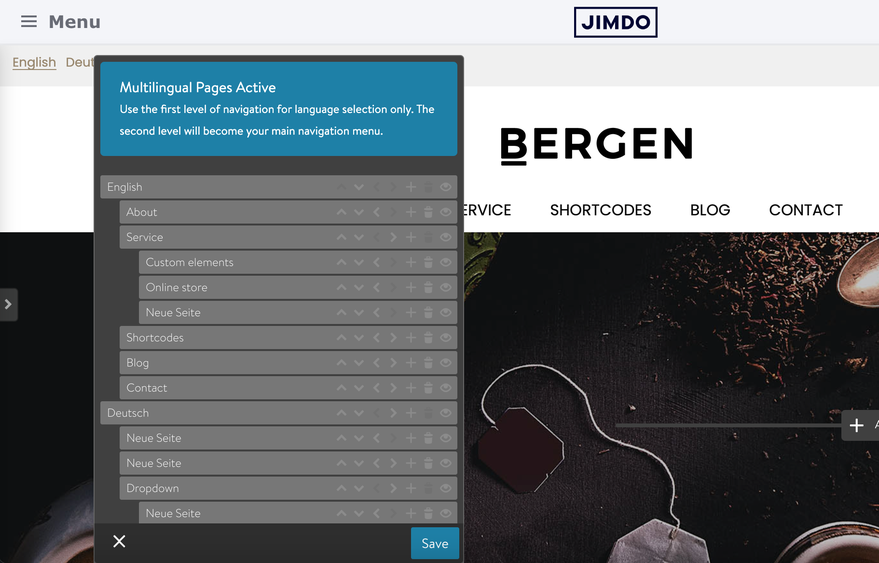
Matrix Framework includes a multilingual navigation feature that allows you to split your website menu into separate positions. The first-level navigation items are used exclusively for language selection, while the second-level items serve as the main navigation menu. No changes to the HTML or CSS are required.
How to activate
To enable multilingual navigation, update your configuration file by setting the following option: multilingualPage: true
Ensure that the multilingual-navigation.js file is uploaded to your project directory, and adjust the navigation structure as shown in the screenshot above.
multilingualPage: true, // Multilingual page navigation structureNavigating in Admin Mode
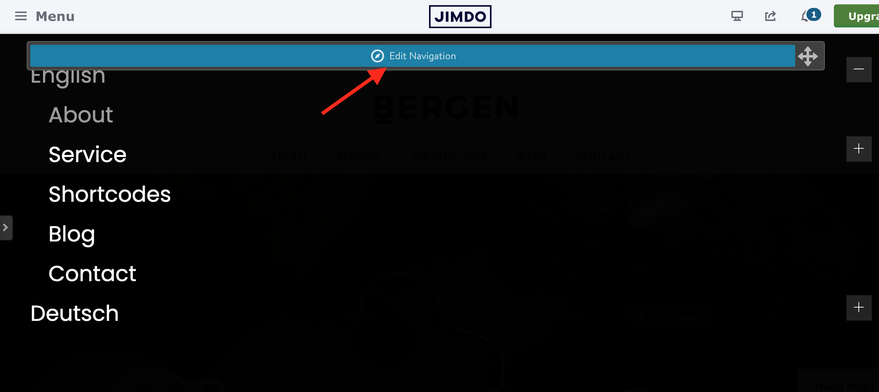
Once multilingual navigation is active, you can edit your menu in admin mode using the mobile navigation:
- Click the hamburger menu icon.
- Hover over the menu with your mouse until the Edit Navigation button appears.
- Click the button to edit your menu.
Notes
The multilingual menu allows you to create separate pages for each language, which must be edited manually on a page-by-page basis. The more languages you add, the more content you will need to edit and translate manually.
However, certain parts of the website remain unchanged and follow the main language set in your admin panel. These include:
- Footer and footer links
- Default system pages (e.g., 404 / Not Found, sitemap, about)
- Online store and its options
- Blog pages